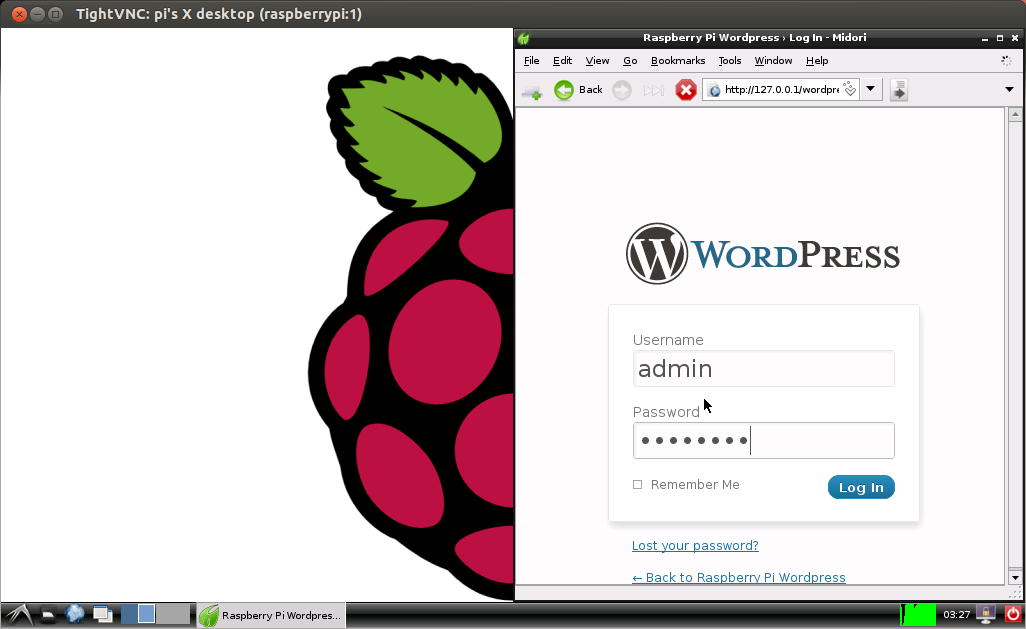
WordPress on Raspberry Pi

6
  This worked for me.

This tutorial will demonstrate how to install and host WordPress on Raspberry Pi. This process assumes you have Debian for Raspberry Pi installed on an SD card. If not, see RPi Easy SD card setup.

Install Apache

WordPress runs on the Apache2 web server. To setup Apache, follow the instructions in my previous post, Raspberry Pi and Apache.

Install MySQL and PHP

Begin by installing the required dependencies. From a terminal:

sudo apt-get install mysql-server-5.5 php5 php5-mysql php5-gd

Next run the MySQL init script:

sudo mysql_install_db

Download and Extract WordPress

Download the latest wordpress source files

wget http://wordpress.org/latest.tar.gz

Extract the downloaded archive:

tar -xvzf latest.tar.gz

Create a directory in /var/www for the WordPress install:

sudo mkdir /var/www/wordpress

Copy over the extacted files:

sudo cp -r ~/wordpress/* /var/www/wordpress

Configure Apache

Next, make a backup of the apache config file, then open it in a text editor:

sudo cp /etc/apache2/apache2.conf /etc/apache2/apache2.conf.bak
sudo vim.tiny /etc/apache2/apache2.conf

Add this line to the end of the file:

AddType application/x-httpd-php .html

And restart Apache

sudo /etc/init.d/apache2 restart

Configure MySQL

The next step is to configure MySQL for use with WordPress. WordPress needs a database and user, and permissions set correctly for access. Start the mysql config:

mysql -u root -p

Enter the root MySQL password, then arrive at the mysql prompt

mysql>

Create a database for WordPress, create a user for the database, and set password set the permissions:

CREATE DATABASE wordpress;
CREATE USER wordpressuser;
SET PASSWORD FOR wordpressuser= PASSWORD(“1234″);
GRANT ALL PRIVILEGES ON wordpress.* TO wordpressuser IDENTIFIED BY ’1234′;
FLUSH TABLES;

Then quit the MySQL client:

exit

Now create a new wordpress configuration based on the sample:

sudo cp /var/www/wordpress/wp-config-sample.php /var/www/wordpress/wp-config.php

And open it up for edit in an editor:

sudo vim.tiny /var/www/wordpress/wp-config.php

Change this:

/** The name of the database for WordPress */
define(‘DB_NAME’, ‘database_name_here’);

/** MySQL database username */
define(‘DB_USER’, ‘username_here’);

/** MySQL database password */
define(‘DB_PASSWORD’, ‘password_here’);

to this (substituting password_here with your own from above):

/** The name of the database for WordPress */
define(‘DB_NAME’, ‘wordpress’);

/** MySQL database username */
define(‘DB_USER’, ‘wordpressuser’);

/** MySQL database password */
define(‘DB_PASSWORD’, ‘password_here’);

Finalizing the install

The hard part is over! Now open up a browser and head to the site and finalize the install. To do this, navigate from a browser on another machine on your local network, only substitute the local address of the Raspberry Pi. To find the address of the Raspberry Pi, open a terminal and run:

ifconfig

Then navigate to that address with a trailing /wordpress from a browser on the same local network:

http://192.168.1.100/wordpress


32 Comments

  1. Nice writeup! I’ve gone through this process recently myself. How does the server hold up to more than minimal traffic? I’ve been thinking about setting up an image with WordPress, nginx, and Sqlite as a low-memory alternative.

    • I haven’t tried with nginx or sqlite myself, but I suspect it will be an improvement over the full fledged apache/mysql install!

  2. Thanks for the explanation. Followed your guide and got WordPress working, although it does seem to ‘lock-up’ easily, needing a restart of the RasPi. How stable do you think it is?

    • Hi James,
      I was experiencing the lock-up issue as well. I’m looking into some options with the memory split, or caching to improve the stability!

  3. Thank you. I can confirm that it works on my Pi with a Sandisk Class 10 Ultra SD (16GB). Serves pages fine. Install only possible remotely. Having issues with ‘lockup’ when using backend to edit content.

    • Hi Brad, thanks for the feedback. My experience with backend editing also sometimes seems to ‘lockup’. I’m going to try with nginx and see if it fares better than apache.

  4. when I tried to copy extracted files(sudo cp -r ~/wordpress/* /var/www/wordpress) it keeps giving me error….or asking me to go to –help…for cp command…what am I doing wrong? Need help please.

    • Hi Rafael, the most likely cause is the wordpress archive is not in the assumed location. The command assumes you have downloaded and extracted the archive to the home directory of the pi user, if you have extracted it somewhere else, you will need to adjust accordingly. Try the cp command with fully qualified paths (update to match your location):

      sudo cp -r /home/pi/wordpress/* /var/www/wordpress
  5. you know what….that did it beautifully….thanks a million…

  6. I find that the mysql user creation section above doesn’t work – after doing it attempting to log in as wordpressuser gives and access denied.

    Instead of the three lines (CREATE USER, SET PASSWORD and GRANT ALL), I found the following single line worked:

    GRANT ALL on wordpress.* TO wordpressuser@localhost IDENTIFIED BY ‘password’;

    • Laurent Mahé

      Thanks Jon

      I had the “error establishing a database connection” error message.

      Your suggestion solved my problem beautifully :)

      • I had same problem using 2012-10-28-wheezy-raspbian.zip image
        I had also done a
        sudo apt-get update
        sudo apt-get upgrade
        this was 7 November 2012

        your use of @localhost in the user ID fixed the problem

        mysql -u root -p
        GRANT ALL on wordpress.* TO wordpressuser@localhost IDENTIFIED BY ‘password’;
        flush tables;
        exit

        then connected to web page and all worked!

        ===
        Michael, great tutorial/recipe thank you!

  7. Hey this is great! I’m a big Raspberry Pi fan myself. WordPress would be a fun project to put on the Raspi, and it also helps those of use who are just looking to install something like MySQL and PHP.

  8. Cool but for me, I can’t install MySQL and PHP. It say:
    “Some packages could not be installed. This may mean that you have an impossible situation or if you are using the unstable distribution that some required packages have not yet been created or ben moved out of Incoming.
    The following information may help to resolve the situation:

    The following packages have unmet dependencies
    mysql-server-5.1 : Depends: mysql-client-5.1 (>= 5.1.62-1) but it is not going to be installed
    Depends: libmysqlclient16 (>= 5.1.50-1) but it is not going to be installed
    PreDepends: mysql-common (>= 5.1.62-1) but it is not going to be installed
    php5-mysql : Depends: libmysqlclient18 (>= 5.5.24+dfsg-1) but it is not going to be installed
    E: Unable to correct problems, you have held broken packages.”

    I have the last RaspBian image with the last firmware. I made some apt-get update and upgrade but it didn’t change anything.

    • Looks like the newest version of Raspbian has updated the mysql-server-package. Instead of:
      sudo apt-get install mysql-server-5.1 php5 php5-mysql php5-gd
      Use this instead:
      sudo apt-get install mysql-server-5.5 php5 php5-mysql php5-gd
      Thanks for pointing this out… I have updated the article as well!

      • Just use mysql-server without the version number and it will get the latest one.

  9. Hi Michael,

    i have a problem, when I follow your tutorial everything went well except when I try to open the website (the apache page works fine). I get a HTTP-500 error. Can you help me with this?

    • You need to go into your site from your localhost and edit the site URL under settings -> general. Once you update that you will be able to see all your content externally.

  10. Lunatic4ever

    No lockups and using apache with php-apc and apc backend plugin! Works very well!!

  11. I have an interesting problem. If I connect to the server from the localhost I get a correctly formatted webpage. If I connect to it from anyone inside or outside of my network I don’t get graphics. and If I try to login via the login page it gets redirected to 127.0.0.1/wp-login.php which fails. any ideas?

    • hostname lookup problem

      • i have this problem too, would you mind giving a little more advice towards a soloution?

        • i have now fixed this problem, open wordpress admin panel navigate to settings and change the site url and other url from your local ip 192.168.x.x/wordpress to your full ip/wordpress (to find this google search whats my ip) if like me for some reason you can not change the two urls, start a session on the pi terminal, sudo nano var/www/wordpress/wp-config.php

          locate the two ip addresses in their and change as appropriate, save and close.

          job done. enjoy :)

  12. Good write up!
    I had several things that needed to be worked out.
    I could not add or delete to the “FTP” in wordpress, it was a permissions issue.
    sudo chown -R www-data:www-data*

    To log into the FTP I had to use.
    Domain:wordpress
    FTPuser:’SQLuser’@localhost
    FTPpass:’SQLuser’ password’

    Also I developed the site on one RasPi and put it up on another. WordPress really did not like this as it was using the internal IP as it location. When I moved it over I lost the site until I installed phpMyAdmin so I could edit the database and get it back. The settings for the site URL had to be right or it was really slow or not accessible at all. I was using dyndns.

    WordPress Address :your.dyndns.tv/wordpress
    Site Address :your.dyndns.tv

    I hope this helps others get their RasPii up on wordpress!

  13. Hi,
    I’m getting an error : “Error establishing a database connection”
    Any suggestion ?

  14. Yeah i get the same problem and i really want to sort it!

  15. Great blog, thanks for sharing it with us. Now following you, you maybe also interest in looking at my WordPress blog also.

  16. :( followed to a T but get the same “Error establishing a database connection”

    • GRANT ALL PRIVILEGES ON wordpress.* TO “user”@”localhost”IDENTIFIED BY “password”;
      solved the “Error establishing a database connection” for me!

  17. It got a little confusing with the code sections of the posts in italics — I missed some spaces in the syntax and I’m a Linux n00b. Had the database connection problem too, so I just jumped in PHPMyAdmin (I’d previously installed) and set the user and permissions in the GUI. MUCH easier. Thanks for the post! My pi is serving up WP!

  18. Christopher

    Hello, I got a problem when I’m traying to setup a wordpress on my raspberry pi.
    I get this message:

    mysql> SET PASSWORD FOR wordpressuser2= PASSWORD(“1234″);
    ERROR 1064 (42000): You have an error in your SQL syntax; check the manual that corresponds to your MySQL server version for the right syntax to use near ‘“1234″)’ at line 1

Trackbacks/Pingbacks

  1. Zerbitzari banatu txertatuak | txertatuak - [...] montatzea izan daiteke. Nik neuk Raspberry Pi baten gainean wordpress blog bat muntatu dut (gida hau erabilita), blog honen ...
  2. Wordpress for Raspberry Pi using Nginx and MySQL | CNXSoft – Embedded Software Development - [...] been wondering how the Raspberry Pi would handle WordPress. I’ve found some instructions using Apache 2, but this may ...
  3. Raspberry Pi ลง WordPress, Nginx, FastCGI, MySQL | Raspberry Pi Thailand - [...] ที่มา http://www.cnx-software.com/2012/08/03/wordpress-for-raspberry-pi-using-nginx-and-mysql/ http://mitchtech.net/wordpress-on-raspberry-pi/ [...]
  4. WordPress on Raspberry Pi « Logbook - [...] Blog: http://mitchtech.net/wordpress-on-raspberry-pi/ [...]
  5. Random Links of the week | Raspberry PI Community Projects - [...] WordPress on Raspberry Pi | MitchTech [...]
  6. Finally, Putting the Raspberry Pi [RPi] to some use! | The Second Try - [...] working, hence it was back to Google and browsing pages, after a while I found one that suited me, ...
  7. Getting Started With The Raspberry Pi Is Not As Easy As Pie | TechCrunch - [...] was able to install PHP. You can run a web server or a media server from the Raspberry Pi. ...
  8. NerdSites.com – Getting Started With The Raspberry Pi Is Not As Easy As Pie - [...] was able to install PHP. You can run a web server or a media server from the Raspberry Pi. ...
  9. Houston Outsource: Get Tech News Now! Getting Started With The Raspberry Pi Is Not As Easy As Pie | Houston Outsource: Get Tech News Now! - [...] was able to install PHP. You can run a web server or a media server from the Raspberry Pi. ...
  10. Getting Started With The Raspberry Pi Is Not As Easy As Pie | Easy Nulled Script - [...] was able to install PHP. You can run a web server or a media server from the Raspberry Pi. ...
  11. Getting Started With The Raspberry Pi Is Not As Easy As Pie | Crowdfunding News - [...] was able to install PHP. You can run a web server or a media server from the Raspberry Pi. ...
  12. Getting Started With The Raspberry Pi Is Not As Easy As Pie | Krantenkoppen Tech - [...] was able to install PHP. You can run a web server or a media server from the Raspberry Pi. ...
  13. Getting Started With The Raspberry Pi Is Not As Easy As Pie | DailyBusinessNews.comDailyBusinessNews.com - [...] was able to install PHP. You can run a web server or a media server from the Raspberry Pi. ...
  14. Getting Started With The Raspberry Pi Is Not As Easy As Pie | Hosting In - [...] was able to install PHP. You can run a web server or a media server from the Raspberry Pi. ...
  15. Getting Started With The Raspberry Pi Is Not As Easy As Pie « Mr Gee - [...] was able to install PHP. You can run a web server or a media server from the Raspberry Pi. ...
  16. GIASTAR – Storie di ordinaria tecnologia » Blog Archive » Getting Started With The Raspberry Pi Is Not As Easy As Pie - [...] was able to install PHP. You can run a web server or a media server from the Raspberry Pi. ...
  17. Getting Started With The Raspberry Pi Is Not As Easy As Pie | blog seo tips and tricks - [...] was able to install PHP. You can run a web server or a media server from the Raspberry Pi. ...
  18. Getting Started With The Raspberry Pi Is Not As Easy As Pie | download free music to mp3download free music to mp3 - [...] was able to install PHP. You can run a web server or a media server from the Raspberry Pi. ...
  19. Getting Started With The Raspberry Pi Is Not As Easy As Pie : Blog - [...] was means to implement PHP. You can run a web server or a media server from a Raspberry Pi. ...
  20. Getting Started With The Raspberry Pi Is Not As Easy As Pie | Tech Is Geeky - [...] was able to install PHP. You can run a web server or a media server from the Raspberry Pi. ...
  21. Install WordPress on Cubieboard(with APM) | Dev. - [...] 설치 참고 : http://mitchtech.net/wordpress-on-raspberry-pi/ [...]
  22. Wordpress on the Raspberry Pi | PYoung.net - [...] Well, sort of.  Still playing around with the DNS settings at my domain name host as the url isn’t ...

Switch to our mobile site