Raspberry Pi + PWM RGB LED Strip

1
  This worked for me.

This tutorial demonstrates how to easily use a Raspberry Pi to drive 12V RGB LED strips using Pulse Width Modulation (PWM).  Out of the box, the Raspberry Pi has only one GPIO pin that is capable of pulse width modulation (PWM).  However, thanks to the efforts of Richard Hirst and his servoblaster kernel module, standard GPIO pins can be used to perform PWM.

Note: The flashing of the LED strip due to PWM is only noticeable in the uploaded video; in reality, the colors progress smoothly without any visible flashing.

Hardware

Parts needed:

  • Raspberry Pi
  • 3 x TIP120 power transistors
  • RGB LED strip
  • Perfboard/Breadboard
  • Hook-up wire


Assembly


Connect a 12V power supply to the 12V pad on the RGB LED strip, connect the base of each TIP120 power transistor to its respective GPIO pin (pins 18, 23, and 24 in this example), connect the collector of each to its matching pad on the LED strip, and finally, connect the emitters to common ground for both the Raspberry Pi and the 12V power supply. Here is a diagram of the circuit  (created with Fritzing):
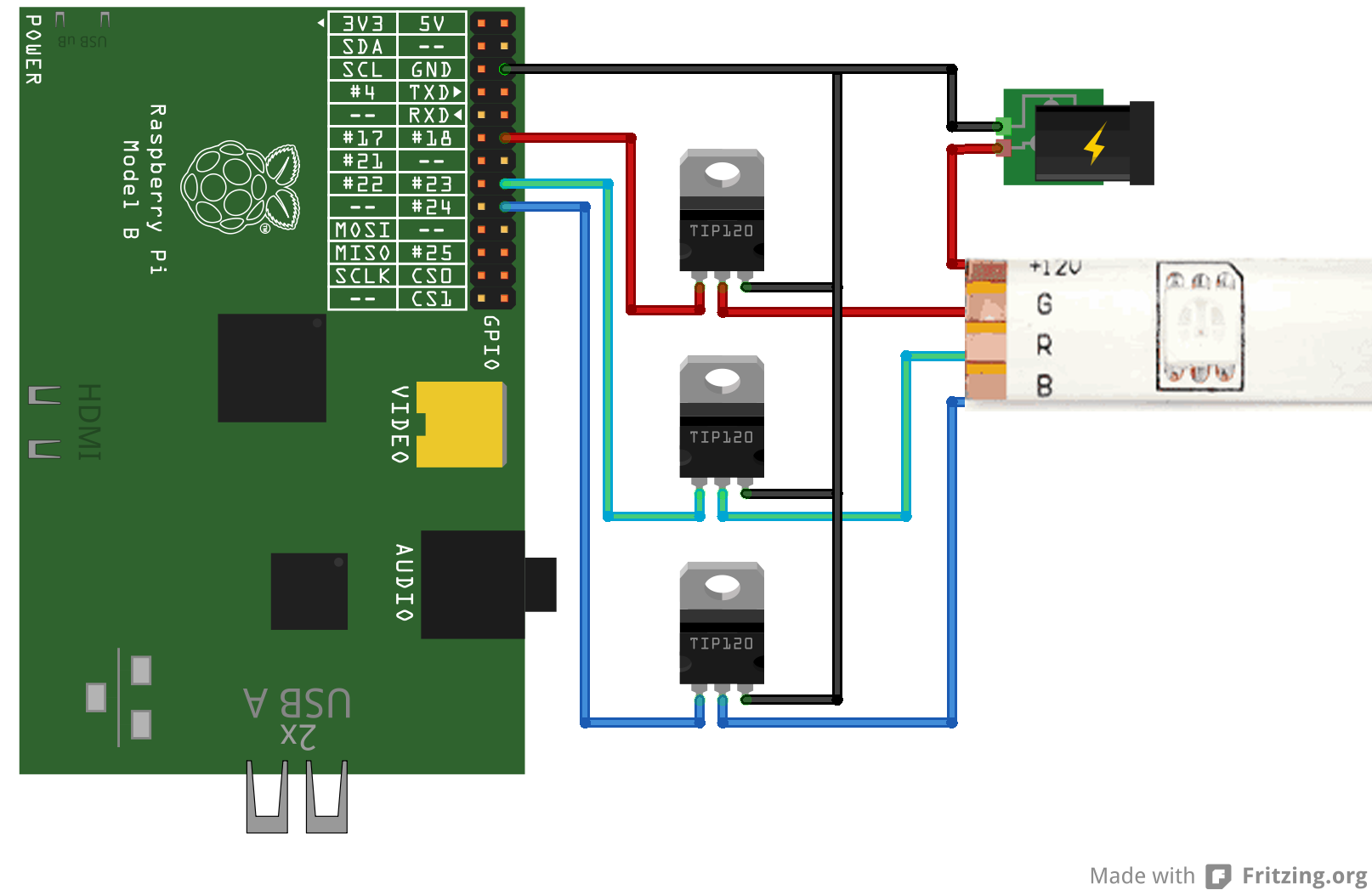
raspi_rgb_led


Software

Configure servoblaster.

The next step is to configure the servoblaster kernel driver. The driver creates a device file, /dev/servoblaster to which commands can be sent to control the servos. The commands take the form “=” with servo number representing the desired servo (0-7 in this case) and servo position representing the pulse width in units of 10 µs. For example, to send servo 3 a pulse width of 120 µs:

echo 3=120 > /dev/servoblaster

To setup the servo blaster on the Raspberry Pi, we will need to have git installed to pull down the sources. If you don’t have it installed already, open a terminal and run:

sudo apt-get install git-core

Then pull down the sources from Richard’s Github repo:

git clone https://github.com/richardghirst/PiBits.git

Now change into the servo blaster directory:

cd PiBits/ServoBlaster

And compile and install the module:

make install_autostart

This command also sets up the necessary udev rules for accessing the /dev/servoblaster device. Note: using the ’install_autostart ’ command will set up a raspberry pi to load the servo blaster kernel module on every boot. If you don’t want this behavior, execute ‘make install’ instead. In either case, the module will not yet be loaded so go ahead and install it using modprobe:

sudo modprobe servoblaster


Sample code usage.

Now that all the prerequisites have been installed and the servo blaster device configured, on to the actual sample code. The python sample script uses PWM to fade from blue to violet, to red, to yellow, to green, to teal, back to blue.


11 Comments

  1. deltablue

    Thank you for the very interesting tutorial!

    One stupid question from a total noob: Do I read the python-code correctly that you write to all 8 GPIO-pins? It is not possible to adress only the three pins used (18,23,24 in your example)?

    Thank you!

  2. Thank you too for this tutorial,

    Another stupid question from another noob:
    What is the max current which can passthrough the TIP120 ?
    how much voltage the pwm signal use on the PI ? 1v , 3 ?

    For exemple I know that the arduino has 5V pmw output.

    Regards,

  3. Hi Michael,

    Thanks for sharing this interesting experiment. I just tried doing it “at home” but it seems that the ServoBlaster module will only let me send a pulse that’s 1/8th of the total PWM cycle. So the PWM value is between 0% and 12.5% which kind of sucks …

    How did you get around that?

  4. Richard Hirst

    Hi,
    I wrote ServoBlaster. Servoblaster currently only lets you have one output on at a time, in an attempt to limit the maximum current requirements of multiple servos, and to avoid spikes when you suddenly turn on 8 outputs.

    If you want to hack, I’d start with the new userspace daemon (servod) rather than the kernel base servoBlaster.ko. The user space one basically has an array of words that it writes to the gpio control registers one per 10us. You could change it to start all pulses at the start of the 20ms cycle, and then turn each off at whatever point you wanted, right up to the end of the 20ms cycle. Not so easy with the kernel space implementation.

    There is also http://www.raspberrypi.org/phpBB3/viewtopic.php?f=37&t=22923 but I don’t think it is open source, and it is for C coders (and I’ve not tried to use it myself).

  5. I keep getting this error on the last step..

    ERROR: could not insert ‘servoblaster’: Exec format error

    any ideas?

  6. Hi Michael, thanks for your excellent and simple writeup!

    I’m getting everything to work just fine, however I am definitely getting a visible flicker on almost all colors, looking like it’s around 20-25Hz or so. Is this something that can be eliminated? In your write up, you wrote “in reality, the colors progress smoothly without any visible flashing.”

    Thanks!

  7. How can I make a led strip fade from 0% brightness to 100% brightness. The sample code doesn’t help me very much.

  8. Sebastian

    Nice work! One question; does this also work with a 24v led strip with a 24v power supply or will that fry your Pi?

Trackbacks/Pingbacks

  1. Raspberry Pi + PWM RGB LED Strip #piday #raspberrypi @Raspberry_Pi « adafruit industries blog - [...] From Mitch Tech: [...]
  2. Lighting up a workspace twofer - [...] each day’s color off the server. With a few transistors, an RGB strip, a custom shield, and faking three ...
  3. Lighting up a workspace twofer | Daily IT News on IT BlogIT Blog - [...] each day’s color off the server. With a few transistors, an RGB strip, a custom shield, and faking three ...
  4. Lighting up a workspace twofer | Make, Electronics projects, electronic Circuits, DIY projects, Microcontroller Projects - makeelectronic.com - [...] stain away the server. Accompanying a limited transistors, an RGB expose, a praxis defend, and faking trio PWM routes, ...
  5. Lighting up a workspace twofer | ledfreaks.net - [...] each day’s color off the server. With a few transistors, an RGB strip, a custom shield, and faking three ...

Switch to our mobile site